


Teleprompter for Video
4.6364.00 Reviews
App Specs
- Version
- 3.11.1
- Updated On
- License
- Free
- Downloads
- 1,000,000+
- Developer
- Norton Five Ltd
- Categories
- Productivity
- Platform
- Android, iOS
Screenshots
 Analysis by AppCompare
I use a teleprompter app for a simple reason: looking down at notes breaks the connection with the camera. Teleprompter for Video brings the script and recording into one workflow, which can make speaking on camera feel less like juggling and more like having a conversation. It is a productivity app from Norton Five Ltd, aimed at people who regularly record scripted videos rather than those who only need a place to store notes.
That focus shapes what I value here. The appeal is not that a scrolling script magically makes a video polished; it is that I can prepare, position, and deliver my words without repeatedly stopping to check another screen. The app is free to install, with optional in-app purchases, and it is rated for Everyone. Its 4.8 average from around 25,000 ratings and more than a million installs suggest it has found an audience, though I would still judge it by whether its recording routine suits the way you work.
What “fast” should mean for a speaking app
For this kind of tool, speed is less about opening a screen in a fraction of a second and more about getting from a draft to a usable take without unnecessary steps. The script can be typed or pasted into the app, and the controls described in the experience below let you adjust its presentation before recording. If you already have your words ready, that is a practical path from preparation to camera.
I would not treat a quick setup as a reason to skip a rehearsal. A script that scrolls smoothly can still move at the wrong pace for your speaking style. Read a few lines aloud before recording, then adjust the scroll speed until your eyes can stay slightly ahead of your voice. If you only set the pace after pressing record, you may spend the opening moments concentrating on the controls rather than the delivery.
Where a longer recording can feel demanding
Recording while reading asks you to coordinate several things at once: follow the moving text, keep your gaze near the lens, speak naturally, and pay attention to framing and sound. This can feel manageable for a short introduction but more tiring over a long explanation. I would split a lengthy script into sections with clear stopping points, especially if a stumble would otherwise send you searching through a large block of text.
A useful preparation trick is to write for the spoken voice rather than copy a dense article into the prompter. Short sentences and visible paragraph breaks make it easier to recover your place after a pause. They also give you natural moments to breathe without needing to rush after the script catches up. This is a writing choice, not a special app feature, but it has a direct effect on how comfortable the teleprompter feels.
Reliability comes from a repeatable routine
Keeping the script and recording in the same app reduces the need to switch back and forth between tools. The app also supports importing scripts from services such as Google Drive or Dropbox, which is useful if you draft on another device or collaborate on wording before you shoot. I would still open and check an imported script before recording: line breaks, emphasis, and paragraph spacing matter more when you have to read them at camera distance.
Worth Reading Before You Choose

EA SPORTS FC Mobile 26 Is a Bigger Football Game, but It Takes Time

Flipboard Shows What News Apps Must Do Beyond the Feed

Switching to Android Auto Means Rethinking Your Driving Routine

Google Calendar Makes a Crowded Week Easier to Manage

Ludo King Makes the Most of the Minutes Between Plans

Baby Panda World Brings Quick Play to Modern Phones, but Its Game Library Feels Busy
For an important take, I would make a short test recording first. That gives you a chance to check whether the text is comfortable to read, whether the scroll pace suits you, and whether the framing works before you deliver the full script. Treating that quick test as part of the process is more dependable than assuming a prepared script will automatically produce a clean take.
Device fit and sensible expectations
The app’s current version is 3.10.2 and it supports Android 8.0 or later. That makes the operating-system requirement worth checking before planning a shoot on an older device. More generally, filming and displaying a moving script at once is a heavier job than writing a note, so I would close distractions and keep a device steady rather than expect a phone to behave like a dedicated production setup in every situation.
Optional purchases range from $5.49 to $21.99 per item. I would begin with the free app and decide whether its workflow fits before paying for anything. That is particularly sensible if you only record occasionally: a regular creator may appreciate a dedicated script-and-camera routine, while someone making one short clip now and then may be perfectly well served by a simple outline beside the camera.
Getting Started with Teleprompter for Video
First things first, downloading and setting up the Teleprompter for Video app was a breeze. Available on both Android and iOS, it’s super easy to find in your app store. Once installed, you’re greeted with a clean and intuitive interface that makes navigation feel like second nature. No crazy learning curve here!
As soon as you dive in, you can start creating your scripts. Just type or paste your content directly into the app. The interface is straightforward, reminding me of a simple text editor, but with a twist. You can adjust the text size, speed, and even mirror the text if you’re using an external device. It’s all about making your life easier, and I’m here for it!
Features that Make a Difference
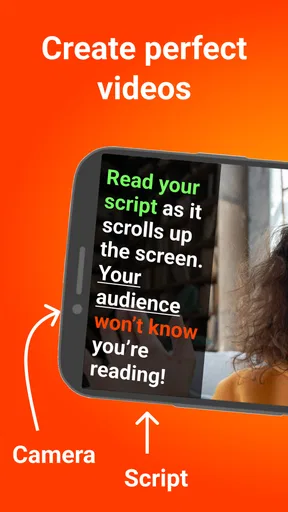
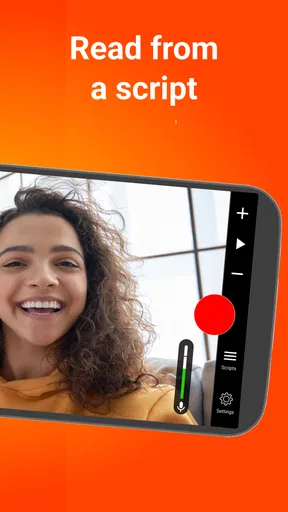
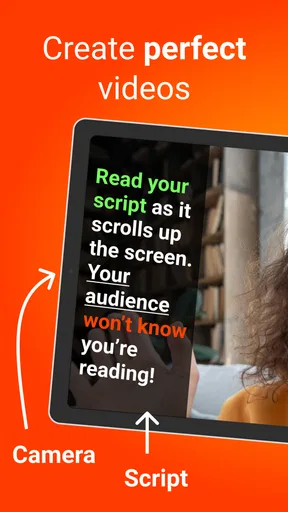
One of the coolest features is the ability to record your video directly within the app. No need to juggle between different tools. Just hit record, and watch as the script scrolls smoothly on the screen. It’s like having your own personal studio in your pocket.
The app also allows you to import scripts from other sources such as Google Drive or Dropbox. This integration means you can work on your script anywhere and anytime, then seamlessly bring it into the app when you’re ready to shoot. Super handy if you’re on the go!
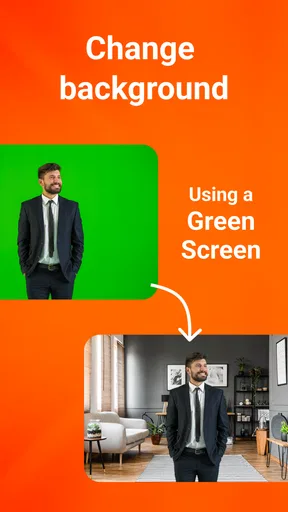
Another nifty feature is the green screen support. If you’re into creating cool backgrounds or need to add some extra flair to your videos, this feature is a lifesaver. It’s like having your own mini Hollywood setup without breaking the bank.
Personal Experience and Tips
During my test drive, I played around with various features and found the text speed control particularly useful. You can tweak it until it’s just right, ensuring you don’t rush through your lines or sound too robotic. It’s all about finding that sweet spot, and with this app, it’s super easy to do.
One tip I’d share is to spend a little time experimenting with the text size and color settings. Depending on your recording environment and lighting, these adjustments can make a big difference. It’s a small detail, but it really enhances the overall quality of your video.
Final Thoughts
Overall, Teleprompter for Video is a fantastic tool for anyone looking to elevate their video content. The combination of intuitive design and powerful features makes it a standout in the crowded app market. Whether you’re a total newbie or a seasoned pro, it has something to offer.
If you’re serious about video creation and want to make the process as smooth as possible, I’d definitely recommend giving this app a shot. It’s like having a professional teleprompter right in your pocket, and who doesn’t want that kind of convenience?
So, are you ready to step up your video game? Check out Teleprompter for Video and see for yourself how it can transform your video projects. I promise, you’ll be hooked!
A realistic routine for a weekly update
Imagine recording a short update for a small business or community page before the day gets busy. I would draft the main points in a document, import the script from Drive or Dropbox, then read it aloud once without recording. That first pass shows whether the wording sounds like something I would actually say. I would then shorten any awkward sentences, add breaks where I naturally pause, and make a brief test take before filming the complete message.
This workflow is especially helpful when the same person handles both the content and the camera. There is no need to keep glancing at a second device or memorize every line, and the script can serve as a safety net rather than a rigid speech. For a casual update, I would leave room to look up and speak freely between prepared points. Reading every word perfectly can sound less personal than using the prompt to keep the message organized.
When it beats notes, and when it does not
Compared with a paper outline or a notes app placed beside the phone, a scrolling prompter is better suited to complete sentences and repeatable delivery. It can be useful for product explanations, lesson introductions, announcements, and video messages where missing a detail means recording another take. The built-in recording workflow also avoids the mental friction of moving between a script tool and a camera app.
The trade-off is that a prompter asks you to manage the pace of the text as well as your delivery. A bullet list is often better for a relaxed video where you want spontaneity, and a separate camera app may suit someone who already has a preferred filming setup or needs a specific production workflow. I would not choose this app simply because I want to make every video look more professional; it is most useful when reading a script is genuinely part of the job.
Small choices that improve the take
One non-obvious adjustment is to keep the script narrower in scope than the final video. Put the key wording on screen, but avoid turning it into a dense page of background information. The less text you need to scan at once, the easier it is to hold your gaze near the lens and notice when your voice starts sounding like you are reading. If a detail is not essential to say aloud, it may belong in the planning notes instead.
For an external prompter arrangement, mirrored text can be useful, but it is worth checking the physical setup before a full take. A quick test helps establish that the words appear the right way around and remain comfortable to follow. Likewise, text size is a practical readability setting, not merely a style choice: larger text may reduce how much you see at a glance, while smaller text may make reading harder at a distance. I would favor comfortable reading over fitting the entire script on screen.
Green screen support adds another possible layer, but it does not remove the need to plan the shot. I would first get a clean, natural delivery against a simple setup, then decide whether a background effect adds something useful. If the background is distracting or the delivery is stiff, the extra visual treatment will not solve the main problem. That makes the feature more appealing to someone who already has a clear use for it than to a first-time creator looking for an automatic shortcut.
Who will get the most from it
I would recommend trying the app if you make scripted videos often, find it difficult to remember exact wording, or need a dependable way to record short explanations without repeatedly restarting. Teachers preparing a lesson introduction, creators filming a regular segment, and people recording clear workplace updates can all benefit from having the words and camera together. Its appeal is strongest when consistency matters more than improvisation.
I would skip it, or use it only occasionally, if most of your videos are conversational, spontaneous, or edited from many separate camera angles. It may also be the wrong fit if you rely on a dedicated camera setup and do not want your phone to be part of the recording process. The app is a practical aid, not a substitute for good lighting, clear sound, thoughtful editing, or a script that feels natural in your own voice.
What I would check before relying on it
People often wonder whether they need to finish a script elsewhere, whether recording requires switching apps, and whether the text can be adjusted for a particular setup. In practice, I would prepare text either by typing or pasting it, or by bringing it in from a supported cloud source such as Google Drive or Dropbox; recording can happen inside the app, and the text size, speed, and mirrored display give you ways to adapt how it appears. Those options cover a straightforward solo shoot without promising a full editing suite.
For anyone concerned about whether it will feel smooth on their phone, I would keep expectations grounded. The Android requirement is version 8.0 or later, but that alone does not tell you how every device will handle a long recording. Close unrelated apps, stabilize the phone, and run a short test before an important shoot. If the phone feels warm, the scrolling becomes distracting, or the recording setup is awkward, shorten the session or use equipment better suited to the task rather than forcing a long take.
My performance verdict
Released on March 31, 2021, and now at version 3.10.2, this free productivity app has a focused role: helping people read a prepared script while filming. I see its best performance not as a claim about raw speed, but as a smoother routine when text, pacing, and recording need to work together. The free starting point makes it easy to see whether that routine suits you, while optional purchases are worth considering only after you know what you need.
My overall view is positive, with one important condition: the app works best when you prepare for it. A readable script, a tested scroll pace, and a quick sample recording matter more than trying to rush straight into a polished take. If scripted video is part of your regular week, this is a useful tool to try. If your style depends on spontaneity or a more elaborate camera setup, a simple outline or your existing recording workflow may serve you better.
Pros
- User-friendly interface for quick setup
- Supports multiple script formats
- Adjustable text speed for convenience
- Easy integration with video recording apps
- Customizable display settings for readability
Cons
- Limited free features without subscription
- Occasional lag on older devices
- No offline script editing capability
- Ads can disrupt user experience
- Requires permission to access camera and mic
FAQs for Teleprompter for Video
What is Teleprompter for Video, and how does it work?
Teleprompter for Video is an app designed to help users read scripts while recording video. It projects your script across the screen in front of the camera, allowing you to maintain eye contact while speaking. This is especially useful for content creators, educators, and presenters who need to deliver polished video presentations.
Is Teleprompter for Video compatible with both Android and iOS devices?
Yes, Teleprompter for Video is available for both Android and iOS platforms. Users can download the app from the Google Play Store for Android devices and the App Store for iOS devices, ensuring accessibility for a wide range of smartphones and tablets.
Can I customize the text display settings in Teleprompter for Video?
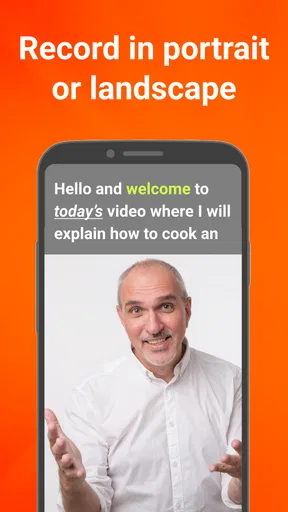
Absolutely. The app offers several customization options such as adjusting the text size, scrolling speed, and screen orientation. This flexibility ensures that users can tailor the teleprompter settings to match their reading speed and comfort, enhancing their overall recording experience.
Does Teleprompter for Video support importing scripts from other applications?
Yes, the app supports importing scripts from various sources. You can easily import documents from cloud storage services like Google Drive or Dropbox, or copy and paste text directly into the app. This feature makes it convenient to integrate existing scripts without manual re-entry.
Is there a cost associated with using Teleprompter for Video?
Teleprompter for Video offers both free and premium versions. The free version includes basic features, while the premium version unlocks additional functionalities such as advanced text editing, unlimited script length, and ad-free usage. Users can choose based on their specific needs and budget.


